Discord Lagging on Windows 11? Fix High CPU & Lag Issues
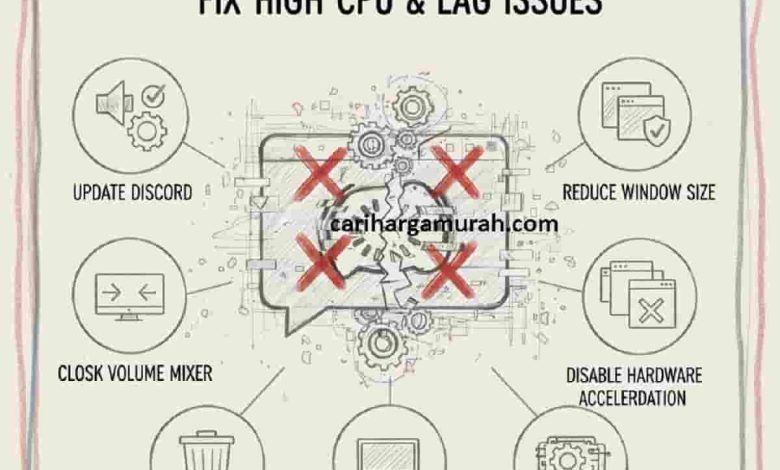
Discord lagging on Windows 11 is a problem many users face, even on decent hardware. The app feels slow, voice chat delays appear, audio stutters, and sometimes Discord eats an unreasonable amount of CPU or RAM for no clear reason.
The good news: most Discord lag issues on Windows 11 are caused by settings, cache overload, or driver conflicts, not by weak hardware. That means you can fix it yourself without upgrading your PC.
Follow the fixes below in order. Most users see a major improvement within minutes.
Severe lag can eventually cause Discord to crash on startup.
How Discord Lag Feels on Windows 11
Lag doesn’t always look the same for everyone. Common symptoms include:
- Discord UI feels slow or unresponsive
- Voice chat audio cuts out or delays
- Screen sharing stutters
- High CPU usage even when idle
- Discord freezes when switching servers or channels
If this sounds familiar, you’re dealing with a performance configuration issue, not a broken app.
Performance issues may also result in Discord audio cutting out or missing.
Why Discord Lags on Windows 11
Windows 11 introduced stricter background management and GPU handling, which doesn’t always play nicely with Discord’s default settings.
The most common causes are:
- Hardware acceleration causing GPU conflicts
- Discord consuming too much CPU or RAM
- Too many background apps running
- Corrupted or bloated Discord cache
- Outdated graphics or audio drivers
- Windows power or performance limits
Fixing lag means reducing unnecessary load and stabilizing how Discord uses system resources.





In extreme cases, Discord may stop opening entirely.
Fix 1: Disable Hardware Acceleration (Biggest Performance Boost)
Hardware acceleration is meant to improve performance, but on Windows 11 it often does the opposite—especially on mid-range or older systems.
Steps:
- Open Discord
- Go to User Settings
- Click Advanced
- Turn off Hardware Acceleration
- Restart Discord
Why this works:
- Prevents GPU driver conflicts
- Reduces random UI lag
- Fixes stuttering and freezing
This single setting improves performance for a huge number of users.
This is one of many issues explained in our complete Discord troubleshooting guide.
Fix 2: Close Heavy Background Apps
Discord competes for resources. If other apps are hogging CPU or RAM, Discord suffers.
Close or pause:
- Web browsers with many tabs
- Game launchers (Steam, Epic, Battle.net)
- Screen recording software
- RGB or system monitoring tools
Steps:
- Press Ctrl + Shift + Esc
- Open Task Manager
- End unnecessary apps
- Restart Discord
Freeing resources often eliminates lag immediately.
Fix 3: Clear Discord Cache (Essential Maintenance)
Over time, Discord builds up cache files that slow everything down.
Steps:
- Close Discord completely
- Press Win + R
- Type %appdata% and press Enter
- Delete the Discord folder
- Press Win + R again
- Type %localappdata%
- Delete the Discord folder
- Restart your PC
What this fixes:
- Slow startup
- UI lag
- High CPU usage
- Random freezes
Your account data is safe—everything is cloud-stored.
Fix 4: Set Discord to High Priority
On some systems, Windows gives Discord very low priority, causing audio delay and lag during multitasking.
Steps:
- Open Task Manager
- Go to the Details tab
- Right-click Discord.exe
- Select Set priority → High
This tells Windows to allocate resources to Discord first, reducing voice and UI lag.
Fix 5: Disable Discord Overlay (Hidden Performance Drain)
Discord’s in-game overlay can heavily impact performance.
Steps:
- Open User Settings
- Go to Game Overlay
- Turn off Enable in-game overlay
- Restart Discord
If you don’t actively use the overlay, disabling it removes unnecessary load.
Fix 6: Update Graphics and Audio Drivers
Outdated drivers are a major cause of stuttering and high CPU usage on Windows 11.
Update:
- GPU drivers (NVIDIA, AMD, Intel)
- Audio drivers
Steps:
- Open Device Manager
- Update drivers manually
- Or download directly from manufacturer websites
- Restart your PC
Driver updates often fix lag introduced after Windows updates.
Fix 7: Disable Unnecessary Discord Features
Discord runs many background features you might not need.
Disable:
- Animated emojis
- Auto-playing GIFs
- Unnecessary notifications
Steps:
- User Settings → Accessibility
- Reduce motion and animations
- Restart Discord
Small changes add up, especially on lower-end systems.
Fix 8: Check Windows Power and Performance Settings
Windows 11 may throttle apps to save power.
Steps:
- Open Settings → System → Power & battery
- Set Power mode to Best performance
- Restart Discord
This prevents Windows from limiting Discord’s CPU usage.
Fix 9: Reinstall Discord (Last Resort)
If lag persists after everything else, Discord’s installation may be corrupted.
Steps:
- Uninstall Discord
- Delete Discord folders from %appdata% and %localappdata%
- Restart PC
- Install Discord from the official website
This restores default performance behavior.
Common Mistakes That Make Lag Worse
Avoid these:
- Keeping hardware acceleration enabled
- Letting cache build up for months
- Running multiple launchers and overlays
- Ignoring driver updates
- Using power-saving mode
Fixing these once prevents future lag.
Is Discord Lag a Hardware Problem?
In most cases, no.
Even mid-range PCs can run Discord smoothly. Lag usually comes from:
- Bad settings
- Cache overload
- Driver conflicts
Not weak hardware.
Final Thoughts
Discord lagging on Windows 11 is frustrating, but rarely serious. Disabling hardware acceleration, clearing cache, and reducing background load fix the majority of cases. Start with those steps first—you’ll likely notice smoother UI and clearer voice chat almost immediately.
Once optimized, Discord runs smoothly even during gaming or multitasking.